Your storage stays yours
Reach files on your own Windows computer through a separate SFTP client. No Rift Conduit cloud-storage plan is needed.

Rift Conduit · Remote files. A direct connection.
Give your Windows computer or server a straightforward SFTP access point. Connect to your files from a separate client, wherever your network setup allows.
Windows 11 x64 · Windows Server 2022/2025 with Desktop Experience · Administrator access required. System requirements

A familiar protocol. Your own destination.
Rift Conduit sets up the Windows side of your SFTP connection. Use your preferred SFTP client to reach the files your account can access.
The product, up close
Choose the allowed incoming IPv4 address, manage SFTP access, and see session information from a focused Windows interface.
Explore the interface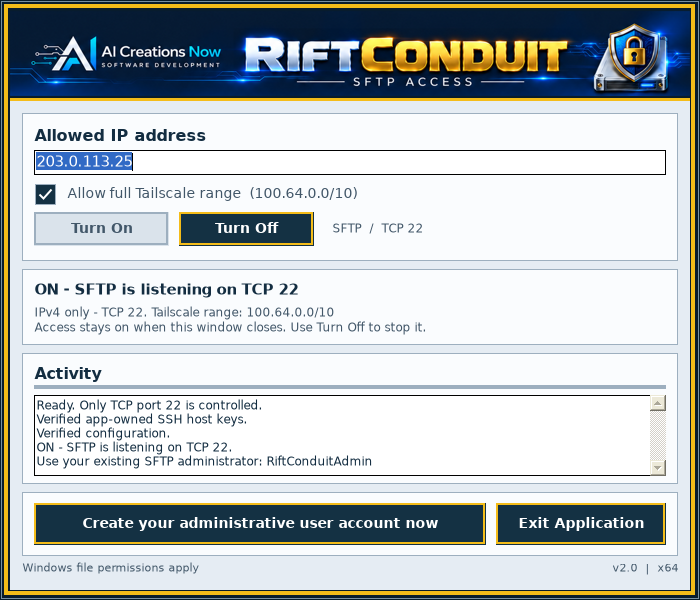
Purposeful by design
Practical controls for encrypted remote file access, without a cloud storage subscription from Rift Conduit.
Reach files on your own Windows computer through a separate SFTP client. No Rift Conduit cloud-storage plan is needed.
Connect through SFTP on TCP port 22. The managed listener provides file transfer without an SSH terminal.
Add an allowance for your client’s incoming IPv4 address. Windows file permissions and existing firewall rules remain in effect.
Turn access on or off from one focused window. Active access can continue after the window closes while your license or trial permits it.
The path to access
Install on the Windows computer holding your files. Start the 48-hour trial or activate your license.
Enter the client’s source IPv4, select Turn On and create a separate administrative account. Keep its connection details secure.
From a compatible SFTP client, use the host’s reachable address, port 22 and your authorized account. Network reachability must be configured.
Remote access depends on your network configuration. You can also use an already configured Tailscale connection.
Take a closer look
Watch the Rift Conduit walkthrough, from setup to the controls you use every day.
Plays muted while in view. Use the player controls for sound. Playback pauses off screen and resumes where you left off.
Open the video directlySTART WITH TWO DAYS. KEEP IT FOR LIFE.
Try Rift Conduit for 48 hours. Keep using it with a lifetime license for the activated computer, including lifetime technical support and upgrades.
One-time payment · Lifetime license
The trial starts when you select Start Trial.
Purchase, then activate your 10-digit key in the app.