01 / Reach your files
Work with the storage you already own.
Browse, upload, download and manage files on your Windows host through a compatible SFTP client. Connect to your home computer, office machine or hosted Windows server when it is reachable from your location.
Your files stay on that machine. Rift Conduit does not require a cloud storage subscription or send your drive contents to AI Creations Now Software Development.
02 / Encrypted transport
File access through SFTP.
Rift Conduit configures an OpenSSH listener for encrypted SFTP file transfers over TCP port 22. Connect using an authorized Windows username and password.
The listener is dedicated to file operations. It does not provide an SSH terminal, remote desktop or port forwarding.
03 / Deliberate access
Choose the incoming address.
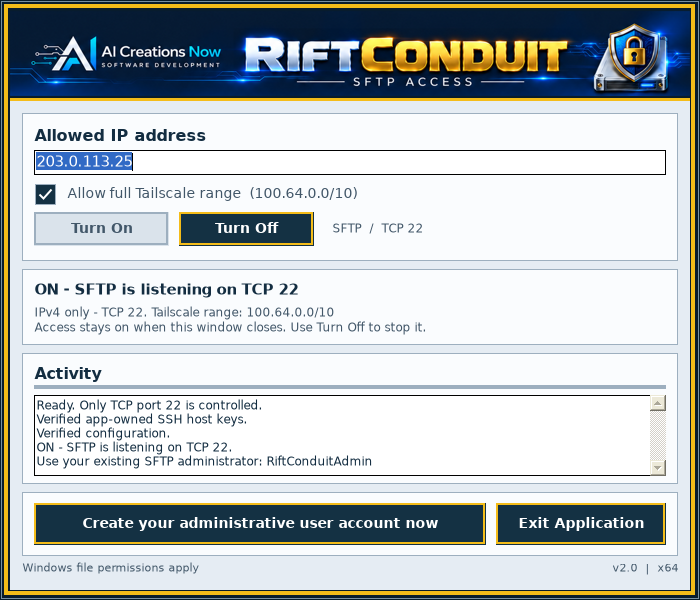
Enter the source IPv4 address of the computer or network you connect from. Rift Conduit creates its own Windows Firewall allowance for that address.
Already use Tailscale? An optional setting adds an allowance for its IPv4 range. Your Tailscale network is configured separately.
04 / Account setup
A dedicated account, ready to connect.
Create a local Windows administrator account from the interface. Rift Conduit saves connection details to a private-permission Desktop text file and supplies a separate connection guide.
You can also authorize an existing local account. The guide explains the required SFTP access-group membership.
05 / Everyday control
On when you need it. Off when you choose.
Start the managed listener with Turn On. Use Turn Off to stop its active sessions and remove the firewall rules created by Rift Conduit.
Saved settings, host keys and Windows accounts remain, so you can use the same connection details next time.
06 / Background operation
Close the window. Keep access available.
An active listener continues after you close the interface, while your license or trial permits it. You do not have to leave the application window on screen.
Reopen the Desktop shortcut whenever you need to check the status or turn access off. Trial expiry is enforced even while the window is closed.
07 / Your choice of client
A file browser or a remote drive.
Use a compatible SFTP file browser to transfer and manage files. Or connect through a third-party remote-drive application to reach the server from your file manager.
The included guide links to client options for Windows, macOS and Linux. These clients are installed separately and have their own requirements and terms.
08 / Clear feedback
See what the connection is doing.
The main window brings listener status, activity messages, address settings and account creation together. Follow setup progress without moving between several Windows tools.
On supported Windows releases, the installer prepares missing OpenSSH components from its bundled local source. There is no separate component download to arrange.